

Description
The Jix Media Library Cleanup Tool is the ultimate solution for WordPress administrators looking to clean up their media library, reduce database bloat, and improve site performance.
Over time, your WordPress Media Library accumulates “orphaned” items – database entries without files, files not attached to any posts, or broken links. This tool allows you to scan, analyze, and remove these items safely.
🚀 Upgrade to the Pro Version to unlock Deep Scanning for page builders (Elementor/Divi), Automated Scheduling, and Advanced Filtering.
✨ Free (Lite) Features
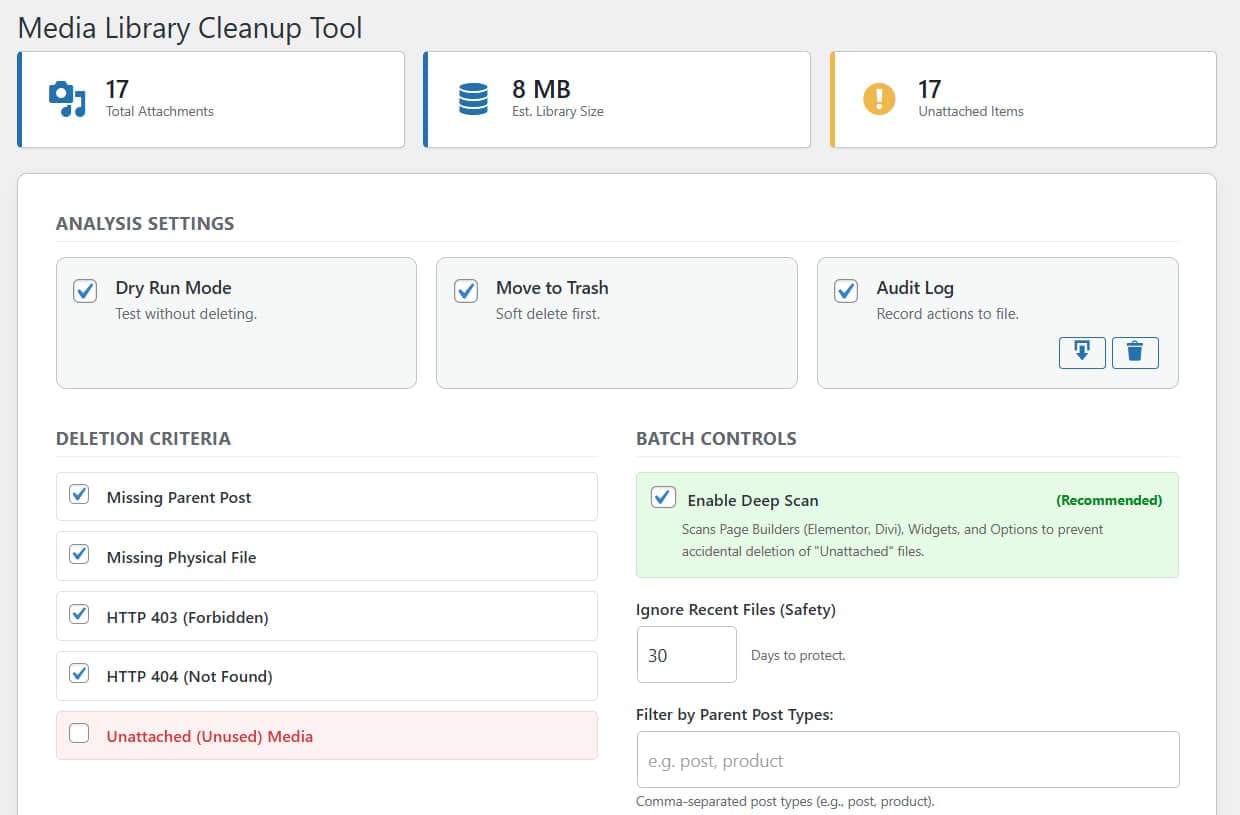
- Dashboard Overview: Get a quick snapshot of your library health, including Total Attachments, Estimated Library Size, and Unattached Items.
- Dry Run Mode: The safest way to clean. Run a full simulation to see exactly what would be deleted without touching a single file.
- Move to Trash: Support for “Soft Delete.” Instead of permanently deleting files, move them to the WordPress Trash first so you can restore them if needed.
- Standard Cleanup Criteria:
- Missing Parent Post: Attachments belonging to deleted posts.
- Missing Physical File: Database records where the actual file is missing from the server.
- HTTP Errors: Detects images returning 403 (Forbidden) or 404 (Not Found) errors.
- Unattached (Unused) Media: Files that are not attached to any specific post or page.
- Safety Protections:
- Ignore Recent Files: specific setting to protect files uploaded within the last X days (default 30) from being scanned.
- Manual Exclusions: “Lock” specific files to ensure they are never deleted.
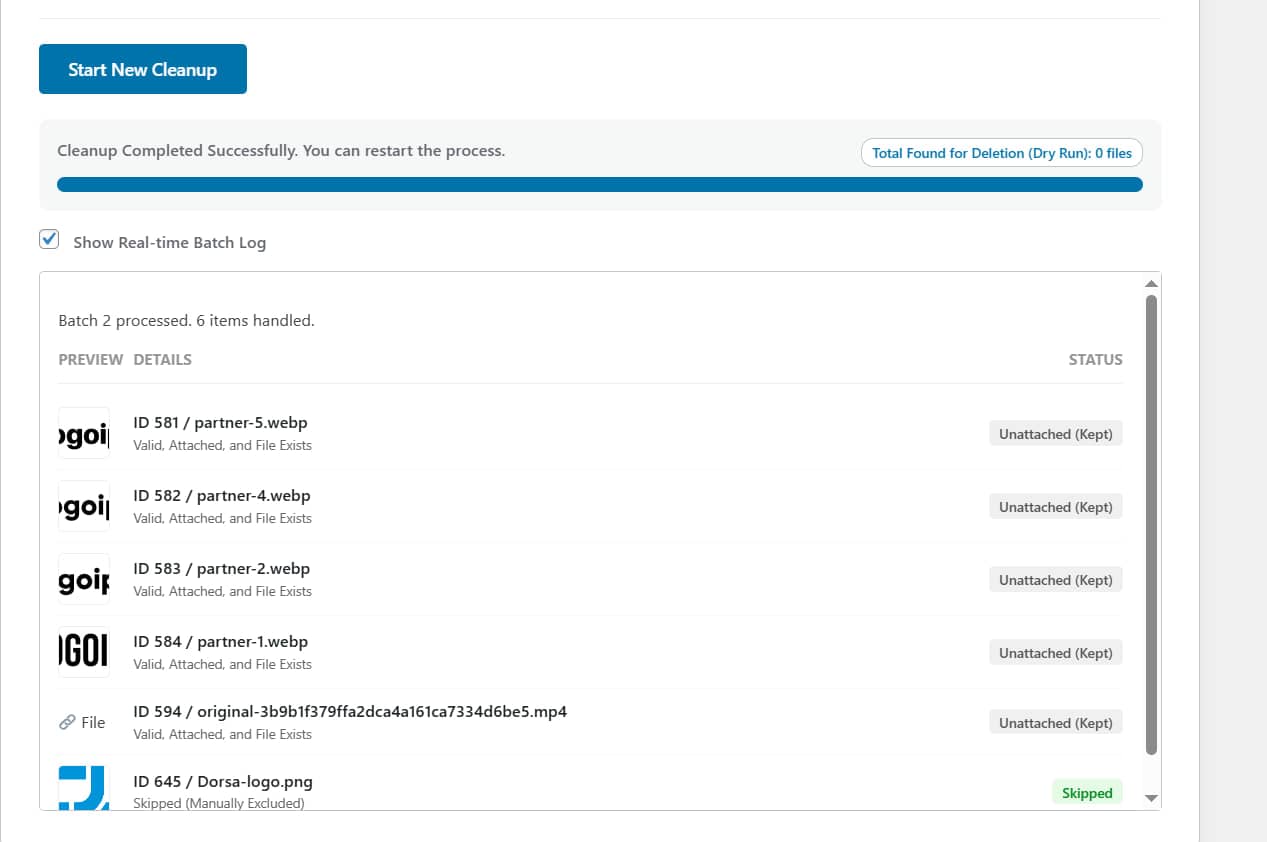
- Real-Time Logs: View a live log of the cleaning process directly on the screen as batches are processed.
- Batch Processing: Processes files in small batches (Max 5 in Lite) to prevent server timeouts.
💎 Pro Features
Unlock the full power of Jix Media Cleanup:
Get Pro Version Now
- Deep Scan Engine: The standard scan looks at WordPress attachments. The Deep Scan engine analyzes content within Page Builders (Elementor, Divi), Widgets, and Theme Options to ensure you don’t delete images currently in use by your design tools.
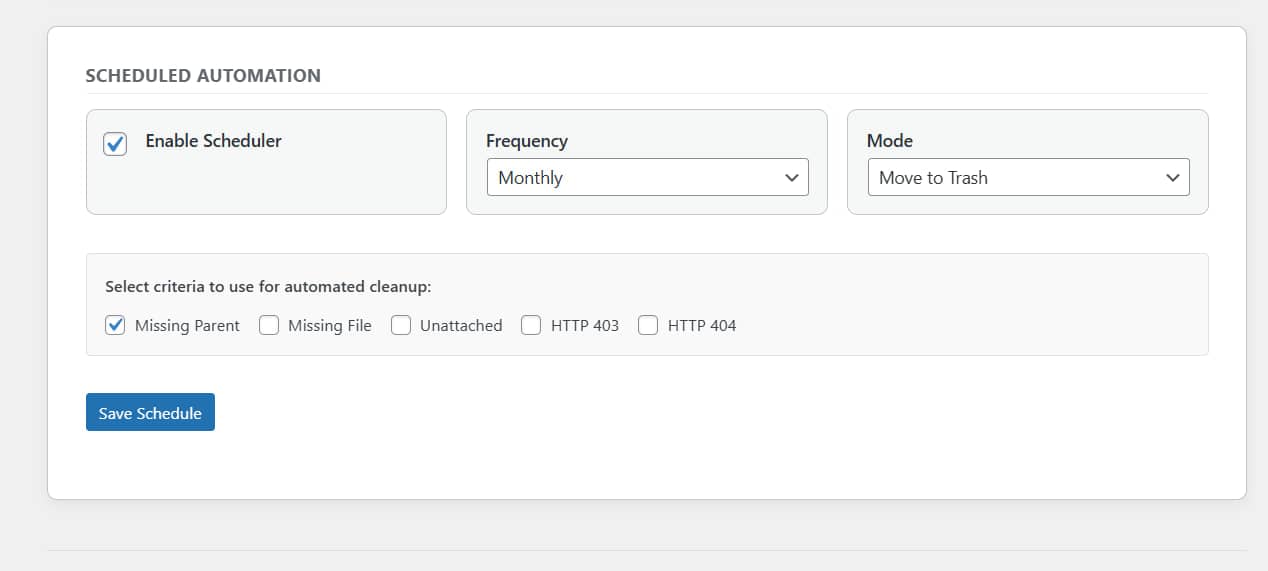
- Automated Scheduler: “Set it and forget it.” Schedule your cleanups to run automatically (Daily, Weekly, or Monthly) with your preferred criteria.
- Advanced Audit Logging: Keep a permanent record of every action taken with downloadable log files.
- Advanced Filtering:
- Filter by Parent Post Types: Restrict scans to specific post types (e.g., scan only ‘product’ or ‘post’).
- Exclude File Formats: Prevent specific file extensions (e.g., .pdf, .gif) from ever being deleted.
- Unlimited Batch Size: Remove the 5-item limit for faster processing on powerful servers.
How to Use
- Navigate: Go to Tools > Media Cleanup.
- Review Stats: Check the top widgets for an overview of your library.
- Configure Settings:
- Enable Dry Run Mode (Highly Recommended for first use).
- Enable Move to Trash for added safety.
- Select Criteria: Choose what you want to clean (e.g., Missing Parent Post, Unattached Media).
- Set Controls:
- Set “Ignore Recent Files” (e.g., 30 days).
- (Pro) Enable Deep Scan if you use Elementor or Divi.
- Run: Click the “Start Cleanup” button.
- Review: Watch the “Real-time Progress” log. If in Dry Run, review the results to see what would have been deleted.
Frequently Asked Questions
Is this plugin safe to use?
Yes. We prioritize safety. We strongly recommend using the Dry Run Mode first to see what will be deleted. Additionally, using the “Move to Trash” feature allows you to restore files if a mistake is made.
What is the difference between Standard Scan and Deep Scan?
The standard scan checks if an image is attached to a post object in WordPress. However, page builders like Elementor or Divi often use images without “attaching” them in the traditional way. Deep Scan (Pro) analyzes the content of your posts and meta fields to find these references, preventing accidental deletion of images used in your layout.
How do I enable the Scheduler?
The Scheduler is a Pro feature. Once upgraded, you can enable it under the “Scheduled Automation” tab, select your frequency (Daily, Weekly, Monthly), and choose the specific cleanup criteria you want to automate.
Why is my Batch Size limited to 5?
The Lite version limits batch processing to 5 items to ensure stability on all hosting environments. The Pro version unlocks this limit for faster processing.